
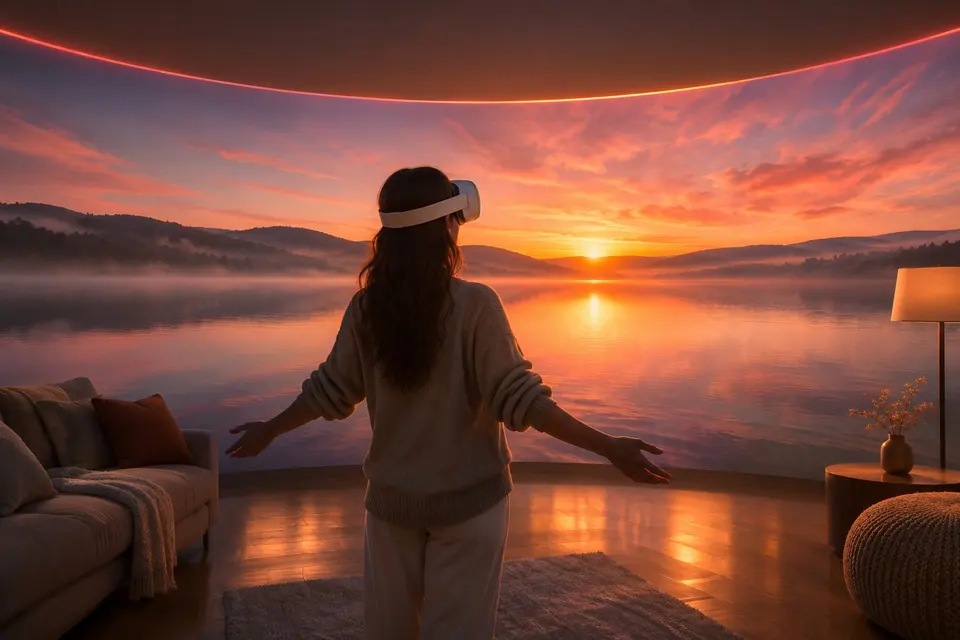
You have a Meta Quest
Step inside.
360° all around you, 3D in true 3D.

 Meta Quest
Step inside your photos and videos with a Meta Quest
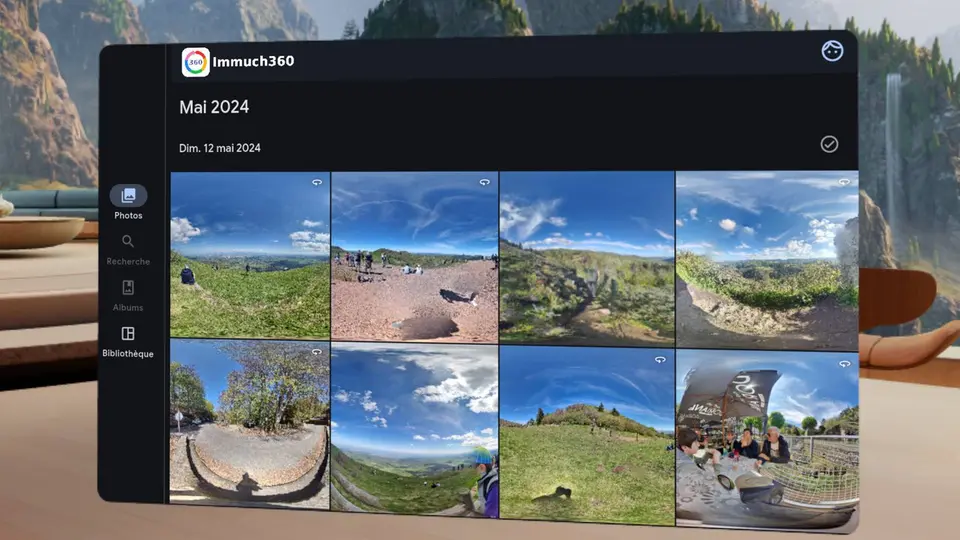
On a Meta Quest the same app runs as a window with your whole library, and its 360° button opens an immersive view where the photo or video is all around you: you look around by turning your head, stereoscopic files are in true 3D, an Apple spatial photo floats in front of you in 3D, and the controllers or your hands drive the time bar, previous and next, and the Turn button that brings what is behind you in front without turning your chair. The media come from your server, the headset itself, a NAS, a media server, a phone or a Plex server, played in place.
- Install the app from the Horizon Store, or sideload the APK of a newer build, see Install.
- On the welcome page, tap "Use without a server" for the headset's own photos and videos, or "Connect to an Immich server": type the code the headset shows in Immuch360 on your phone (sign in with your phone), or log in with your server address, email and password.
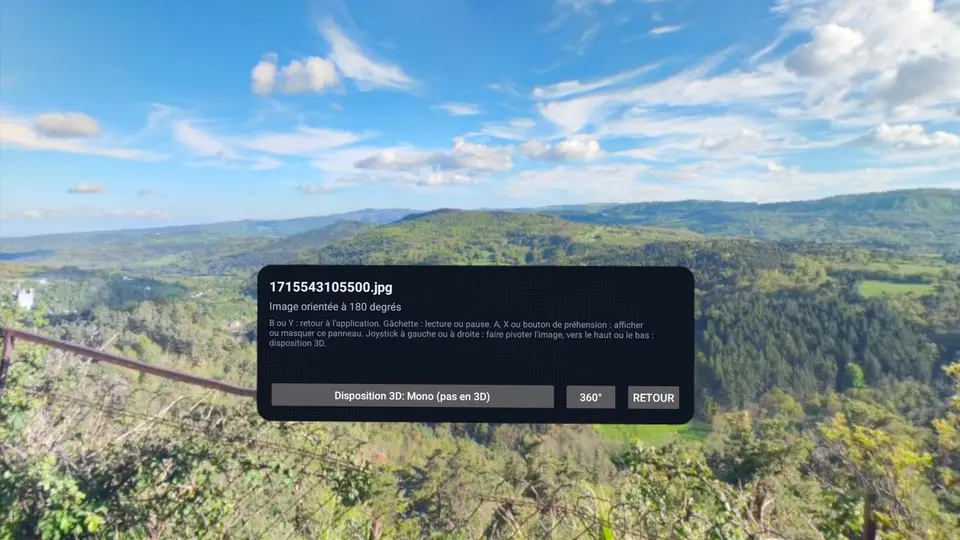
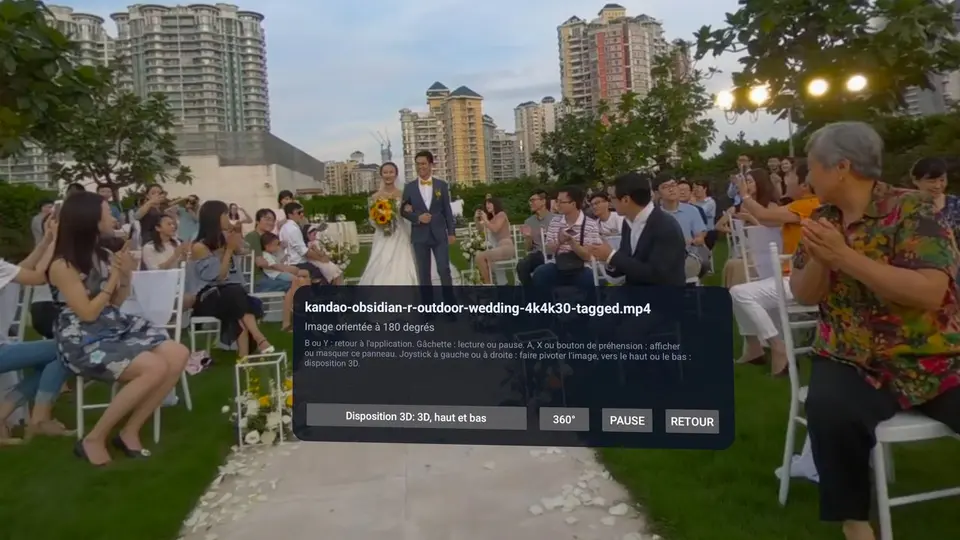
- Open a 360° photo or video and press 360°: the immersive view opens. B or Y, or the Back button of the info panel, brings the window back.
- In the immersive view, push the right thumbstick left or right to turn the view 30° that way. From build 29 it turns the way you push it, as in most headset apps; builds 17 to 28 turned it the other way, and Settings, Asset Viewer, Videos, "Reverse thumbstick turn" brings that direction back.
- In the window, push a thumbstick right for the next photo or video, left for the previous one, from the commits of Gaurav Mukherjee (gmfun).
- "View on a big screen" puts a photo or a video on a large flat screen in front of you: hold a grip to move it, push the thumbstick to bring it nearer or farther, and hold both grips to resize it. A video named like
Movie_SBS.mp4,Film.Half-OU.mkvorclip_LR.mp4gets "View in 3D" and plays in 3D on such a screen ("3D by file name (experimental)"), and "Sharper flat screens (experimental)" draws these screens through the headset's own super sampling and sharpening; both are in Settings, Advanced. - When the decoder stops a video in the middle, the viewer plays it again past the part that failed, and says so. A film picks up where you stopped, and TIFF photos show in the immersive view too.
Kiosk mode, for an exhibition or a shop
Hand the headset to visitors and it opens your 360° photo or video by itself, from the start, each time it is put on. The idea comes from the exhibition builds of ppawelstachh-sys, written again on our code.
- In Settings, Advanced, "Kiosk mode (experimental)": choose the "Kiosk media", a 360° photo or video, and if you like an "End card text" ("Thank you for the journey" otherwise).
- At the next start, the headset names the kiosk media for a few seconds, with Cancel, then opens it.
- The film starts again each time the headset is put on and ends on the card. A kiosk takes no press: hold B or Y for one second to leave.
On which screens
| On which screens | Phone and tablet | Computer | Meta Quest | TV |
|---|---|---|---|---|
| Kiosk mode for visitorsExperimental | Yes | |||
| Flat 3D by file name, sharper screens you moveExperimental | Yes |


Get it on your screens.


GitHub
Windows · macOS · Linux · Android TV · LG · Samsung · APK
Build 42 on GitHub, 6 November 2026 · Desktop build 22, 6 November 2026