
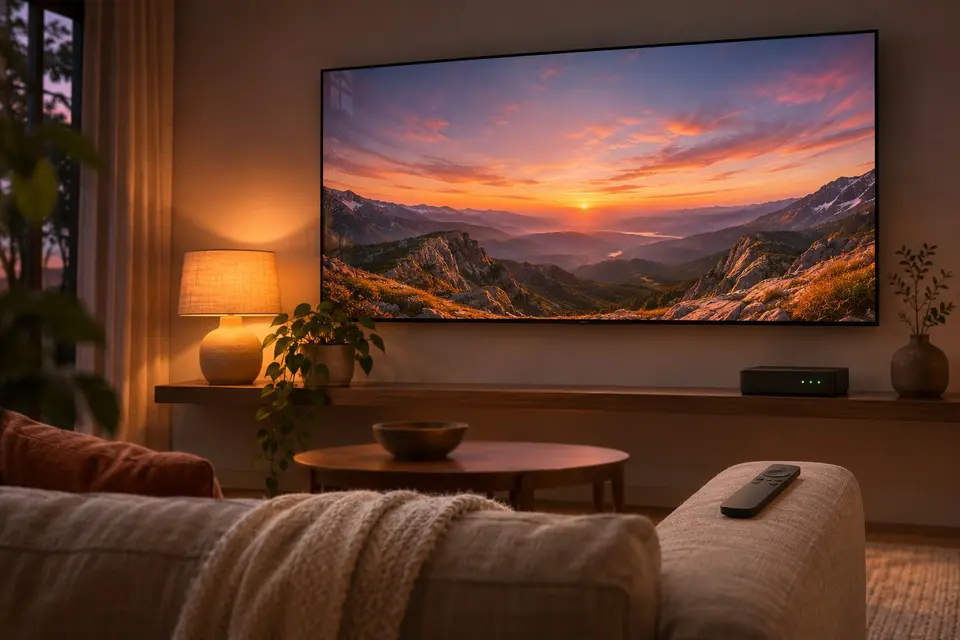
Your photos on the big screen, with the remote.
On the TV.
Android TV and Google TV, LG TVs, and Samsung TVs as a test build.
 Android TV and Google TV LG TVs (webOS) Samsung TVs (Tizen)
 Android phones and tablets
Your photos on the big screen, with the remote. The TV apps all work the same way: the arrows move the frame, OK opens, Back goes back, and in a 360° photo the arrows look around. A TV has no photos of its own, so it shows your Immich server and, on Android TV and LG TVs, your network shares, your Plex server and your cameras.
On Android TV and Google TV
The same Android app, in a dark theme from the first start, with the remote as the only input. In the viewer, Left and Right go to the previous or next photo or video, even while a video plays, and in a 360° photo or video the arrows look around.
- Install the APK with adb, see Install. On the welcome page, choose "Add a network share or a media server" for a share, a Plex server or a camera, "Use without a server", or "Connect to an Immich server", whose page signs the TV in when you scan its QR code with your phone (see Sign in with your phone).
- In a viewer, the play and pause, rewind, fast forward, previous and next keys of the remote work. OK during a video shows the controls with play and pause selected, and a second OK pauses; the -10 s and +10 s buttons follow, then the audio and subtitles buttons when the film has them. From build 29, Down from play reaches the time bar: Left and Right move 10 s per press, faster while held, and OK plays or pauses. The controls and the date hide 5 s after the last key, and Left and Right then go to the previous or next file; on a share, that file opens in a page of its own, with controls that drive it. Videos no longer loop on a TV, unless you turn on Settings, Asset Viewer, Videos, Looping.
- The Menu key, the Info key or OK held down opens the details of the photo or video, read only: date, place, camera, codec, size and bit rate. A video the TV cannot decode says so, with its codec, its size and the limit of the TV's decoders, instead of loading forever; a 360° video beyond the decoders asks before opening the 360° player, and the reason is written on the Logs page of the profile menu.
- Search with the remote: Back from the results returns to Search, with the focus on the search entry, and in Date, "Custom range" picks the start and the end year first, then the month and the day. In Albums, Clear sits beside the search entry. This is the work of Michael Cloutier (mlc70), with his commits.
- A photo shows its date and time at the bottom left while its controls show ("Show photo date and time", in Settings, Asset Viewer). On the time bar of a video, a quick series of Left or Right presses seeks 10 s, then 30 s, then 60 s each, and every press counts. An album opens on its first photo, with its name in the top bar.
Sign in a TV, a headset or a computer with your phone
Scan. Sign in. Watch. Typing a server address, an email and a password with a TV remote, or in a headset, takes minutes. With Immuch360 on your phone, signed in to your Immich server, a TV, a Meta Quest or a computer is signed in within seconds: the big screen shows a QR code, the phone scans it, you confirm, and the screen opens on your library. With the phone app, your password stays on the phone. The Immich app has nothing like it.
- On the big screen (Android TV and Google TV, the Meta Quest window, Windows, Linux or macOS), choose "Connect to an Immich server": the sign-in page shows "Sign in with your phone", a QR code and a 10 character code, beside the server form.
- On the phone, signed in to your server: Settings, "Connect a TV or computer", then "Scan the code". In a Meta Quest, whose screen a phone cannot scan, choose "Enter a code instead" and type the code the headset shows.
- The phone asks "Sign (the screen) in?" and shows a six digit number: check that the screen shows the same one, then tap Sign in. The screen opens on your timeline.
On an LG TV (webOS)
Immich's own apps do not install on an LG TV. Immuch360 has a TV app of its own for LG TVs with webOS 5.0 and later (2020 TVs on), driven by the remote and the Magic Remote: it shows your Immich server, your network shares, your Plex server and your Tapo cameras, and puts your 360° photos on a sphere you turn with the arrows. It is built on immich-tv-webos by Seeky91, which brought the timeline, the albums, people, places, search, the slideshow and the sign in with a phone; thanks to Seeky91. Version 1.0.0 was submitted to the LG Content Store on 24 October and ran on webOS 25 TVs of LG's Cloud Test Lab; until LG approves it, it installs in Developer Mode, and every report in Issues helps.
- Install it on a TV in Developer Mode, see Install. It has its own app id, so it installs next to Immich TV by Seeky91.
- Sign in with your phone (scan the QR code), with your email and password, or with an API key.
- Browse with the arrows and OK. In the viewer, Left and Right go to the previous or next photo or video, also while a video plays; the controls hide 5 s after the last key; Info opens the details; the channel keys zoom; the Magic Remote pointer and wheel work. From version 1.0.1, on GitHub, Up zooms a photo in at once, the arrows then move it and Back zooms out, and a Loading pill shows while a photo is still coming.
- A 360° photo opens on a sphere: each press of an arrow turns it by a step, and a held key keeps it turning. "View as 360°" covers a 2:1 photo the server does not flag; a VR180 photo shows on a half sphere and a 3D photo with one eye. The yellow and blue keys turn a flat photo.
- Once signed in, "Network shares" in the rail of the app: add an SMB, WebDAV or DLNA share, a Plex server (signed in with a code on plex.tv/link) or a Tapo camera. Their photos open in the same viewer, 360° photos on the sphere.
On a Samsung TV (Tizen)
Samsung TVs with Tizen 5.5 and later (2020 TVs on) get the same TV app as test build 0.2.0, which is not on Samsung's store: sign in by typing, the timeline, albums, the viewer and the slideshow, 360° photos on the sphere and a photo turned with one key.
- Sign the package for your TV and install it in Developer mode, see Install.
- Sign in by typing your server address, then your email and password or an API key.
- Browse with the arrows and OK. A 360° photo opens on the sphere.
- A video above what the TV's decoders accept says so, with the size the TV can play and the size of the file, instead of loading forever. A video that stalls shows a notice with its bitrate and the way out: let Immich transcode heavy files, or use a faster link. About this TV gives the TV's video ceiling.
On which screens
| On which screens | Phone and tablet | Computer | Meta Quest | TV |
|---|---|---|---|---|
| Sign in with your phone (QR code) | Yes | Yes | Yes | Yes |
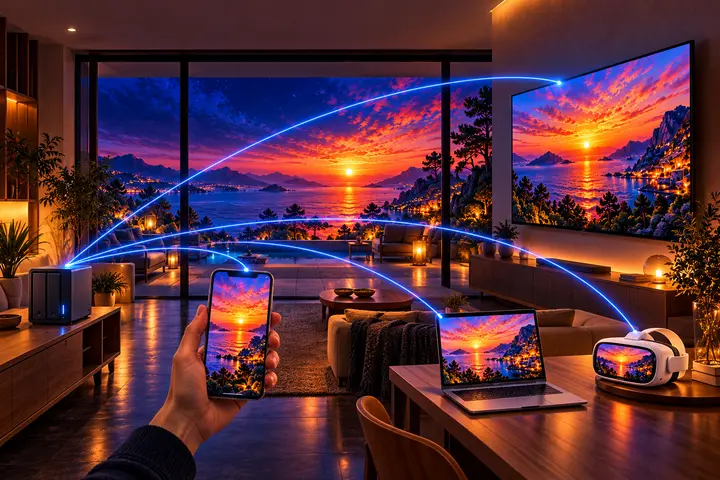
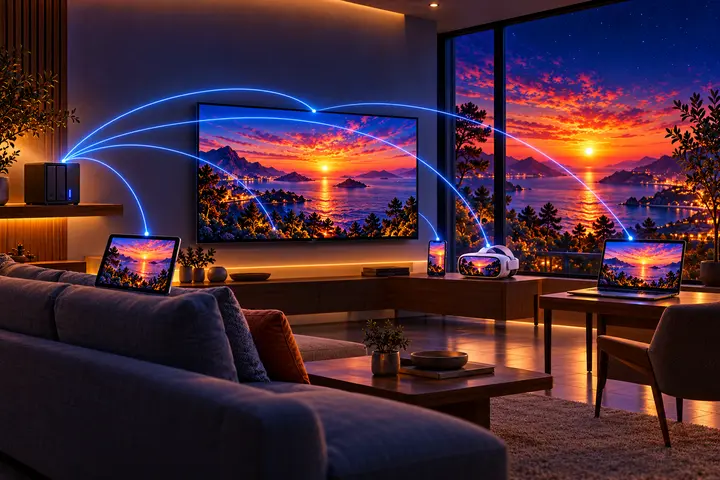

Get it on your screens.


GitHub
Windows · macOS · Linux · Android TV · LG · Samsung · APK
Build 42 on GitHub, November 6, 2026 · Desktop build 22, November 6, 2026