
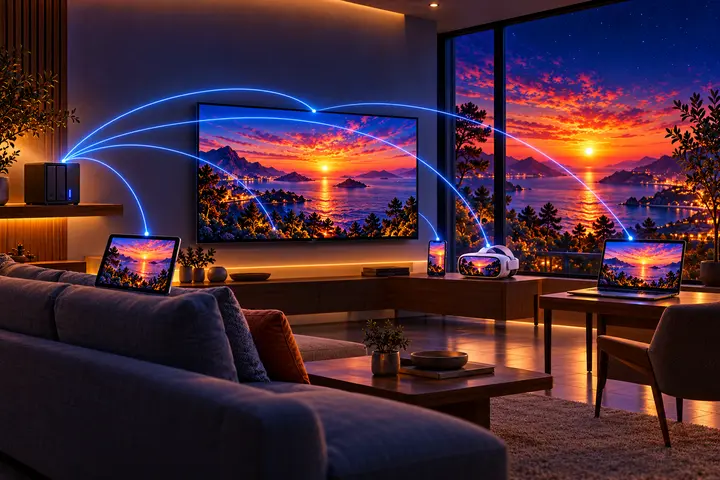
Your photos and films sit on a NAS, a computer, Plex or Immich
Where they are.
In place, nothing copied.
 Android phones and tablets
 iPhone and iPad
 Android TV and Google TV LG TVs (webOS)
 Meta Quest
 Windows macOS
 Linux
Play the files of a NAS, a computer, a media server or Plex
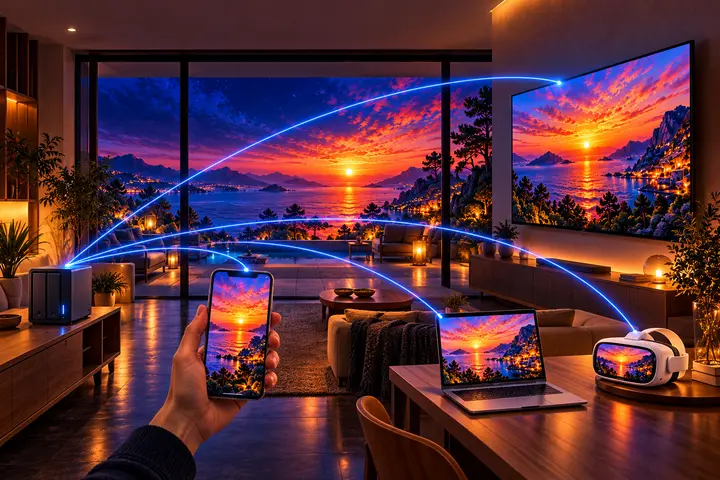
Your videos sit on a NAS, a computer, a media server or Plex. Immuch360 finds the servers of your network by itself, browses them and plays their photos and videos in place, in every viewer of the app, without copying anything: SMB (Samba, Windows shares), WebDAV (Nextcloud, Synology and others) and DLNA media servers (Jellyfin, Emby, minidlna, a NAS, a TV box). A phone can also share its own gallery on the Wi-Fi for a headset or any WebDAV client, and so can a Windows computer.
- Open the Library tab, then Network shares, then + and "A network share (NAS, computer, media server)". From build 24, "Add a network share or a media server" on the welcome page opens Network shares directly, without a server.
- Tap a server under "Found on the network", or fill the form by hand: type, server name or address, share or path, start folder, user name and password.
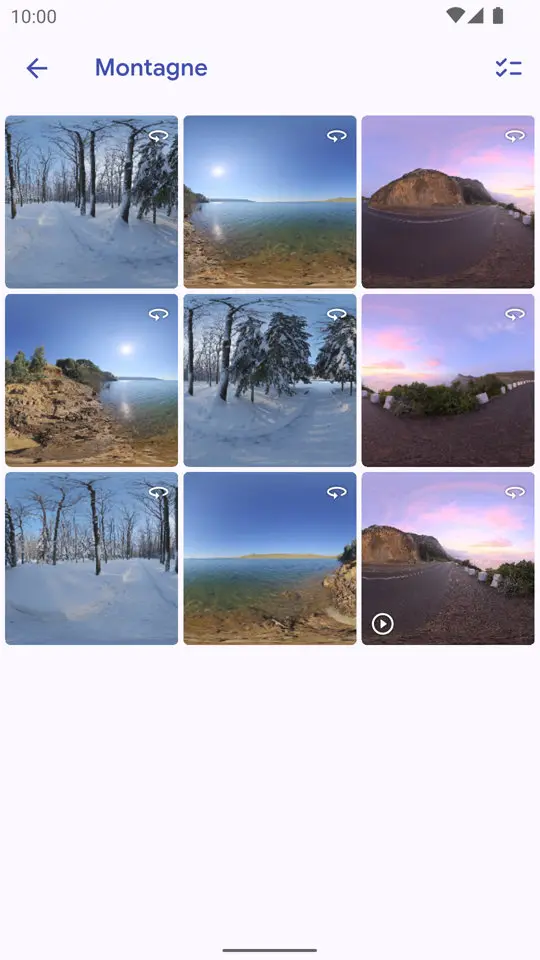
- Tap "Test the connection", then Save. Tap the share to browse it: folders first, then the photos and videos, with the 360° badge on the files recognised as 360°.
- For a Plex server: in Network shares, + and "A Plex Media Server", then tap your server under "Found on the network", paste a token once ("How to get it" on the page says where to find it), then "Test the connection" and Save.
- With an Immich server connected, select files in a folder and tap "Upload to Immich" to send them to your server.
Browse a folder of your phone or headset
On this device lists the albums of the device one by one, without their subfolders, so a folder of films in Download/Quest or a folder of splats does not show there as it sits. "Browse a folder" opens a folder of the phone, the tablet or the Meta Quest like a network share, with all its subfolders, and keeps it in your list.
- Library, On this device, "Browse a folder" (or Network shares, +, "Browse a folder of this device").
- The folder picker of Android opens in Download: pick a folder inside it, such as Download/Quest, then "Use this folder" and "Allow". Android 11 and later let apps open a folder inside Download, not Download itself, and the photos placed directly in Download stay in the Download album.
- The folder opens with its subfolders, its photos and videos with their 360° and 3D badges and, in the headset, its Gaussian splats. It stays at the top of On this device; "Cannot be read now" means it was moved or unplugged, and its cross takes it off the list, with Undo, leaving the files on the device.
- A long press, or Select, then "Upload to Immich" sends files to your Immich server.
On which screens
| On which screens | Phone and tablet | Computer | Meta Quest | TV |
|---|---|---|---|---|
| A folder of the device, opened like a share | Yes | Yes | Yes | |
| SMB, WebDAV, DLNA shares | Yes | Yes | Yes | Yes |
| Plex Media Server | Yes | Yes | Yes | Yes |
| Share this device on the network | Yes | Yes | ||
| TIFF photos | Yes |

Get it on your screens.
GitHub
Windows · macOS · Linux · Android TV · LG · Samsung · APK
Build 42 on GitHub, November 6, 2026 · Desktop build 22, November 6, 2026