
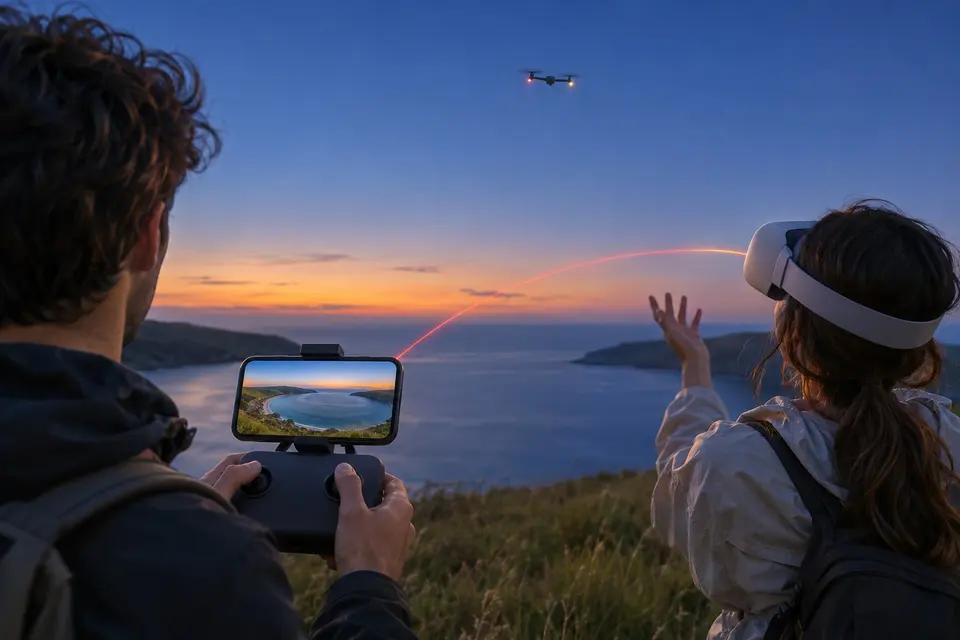
You fly a DJI drone
Your DJI drone, live in the headset
The phone on your DJI remote sends the drone's live picture to a Meta Quest or an Android TV, for the people with you.
Experimental
From the remote to the headset.
- The DJI RC-N3 remote, with your Android phone plugged into it
- Your Wi-Fi, or the phone's own hotspot away from home
- A Meta Quest or an Android TV, to watch
The remote keeps every control. Immuch360 never sends a command to the drone or the remote.
What you see.
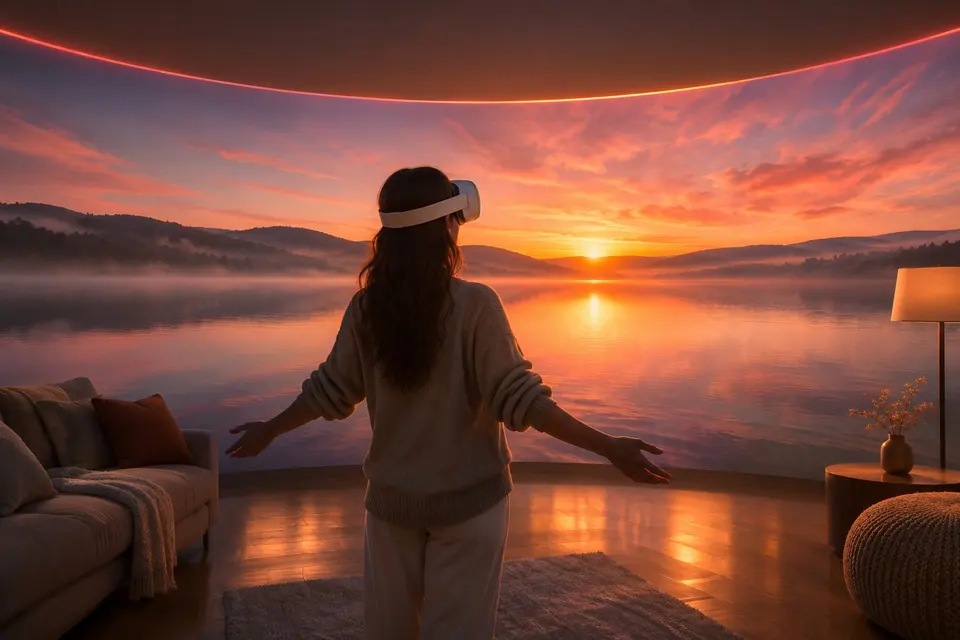
- Meta QuestThe live picture in a large flight view in front of you, with the height, the speed and the obstacle ring.
- Android TV and Google TVThe flight full screen, for everyone in the room.
- Android phones and tabletsThe live video full screen, without DJI Fly and without an account.
To fly while you watch in the headset or on the TV, have an observer beside you who keeps the drone in sight.
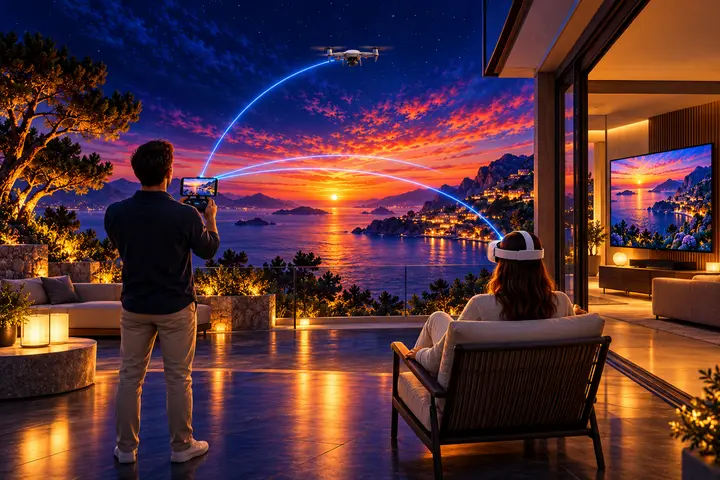
You need
A DJI drone and its DJI RC-N3 remote, Immuch360 on the Android phone plugged into the remote, and Immuch360 in a Meta Quest or on an Android TV.
 Android phones and tablets
 Meta Quest
 Android TV and Google TV
In flight.
- of H.265 video in 1080p from the drone
- 18 Mbit/s
- pictures a second on a TCL Android TV over the home Wi-Fi, from the phone's steady picture
- 15
- freezes of that TV's picture in a flight, the longest 1.7 s
- 7
A DJI Neo 2, an RC-N3 and a Galaxy S24+, on 25 and 26 October 2026.
Which remotes and drones
Remotes that hold the phone
DJI RC-N3DJI RC-N2
Flown with a DJI Neo 2 and an RC-N3.
Drones DJI lists for these remotes
DJI Neo 2DJI NeoDJI FlipDJI Mini 4 ProDJI Mini 5 ProDJI Air 3DJI Air 3SDJI Lito 1DJI Lito X1DJI Avata 360
Not supported: remotes with their own screen (DJI RC, RC 2, RC Pro 2), and so the Mavic 4 Pro, which DJI ships with one of them; DJI goggles; the RC-N1, the RC-N1C and older remotes; a drone flown from the phone over Wi-Fi, without a remote.
A Drone card in the Library, experimental and on by default, gathers what Immuch360 does with a DJI drone: on an Android phone, the drone's live video through its remote controller, and its photos and videos brought to Immich over USB; in a Meta Quest or on an Android TV, that live video relayed by the phone, to watch. Immuch360 is not a DJI product and is not approved by DJI, and nothing is sent to DJI.
See what your drone sees, on your phone
See what your DJI drone sees on your Android phone, without DJI Fly and without any account: plug a DJI RC-N3 remote controller into the phone with its cable, and Immuch360 shows the drone's live video full screen in landscape, H.265 in 1080p, with the flight values read from the cable. The remote keeps full control of the drone.
- The Drone card is in the Library, and "DJI live video" on its page: "DJI live video (experimental)", in Settings, Advanced, is on by default.
- Turn on the drone and the remote, close DJI Fly, then open "DJI live video" and read the safety notice.
- Plug the remote into the phone with its cable. If Android asks which app should open it, choose Immuch360 without "Always", which would take the remote away from DJI Fly; if it asks for a USB mode, choose charging only. Plugging in the remote then opens this screen by itself ("Open this screen when the remote is plugged in", on by default in Advanced).
- Remote, Drone and Picture light up in turn, and the picture comes full screen within a few seconds. Three buttons (leave, "Send to a headset or a TV" and Advanced) and the values sit in the black bands beside the picture. The notes, such as "Live", fade after about five seconds; a tap anywhere brings them back, and nothing on the picture acts on the drone. An error that asks you to act stays.
- Advanced has "Save a capture for a bug report", which writes the link's capture to
Download/Immuch360/dji-link, "Play a saved capture", to play one again without the remote, and Diagnostics, with every number the link gives.
Watch it in a Meta Quest or on an Android TV
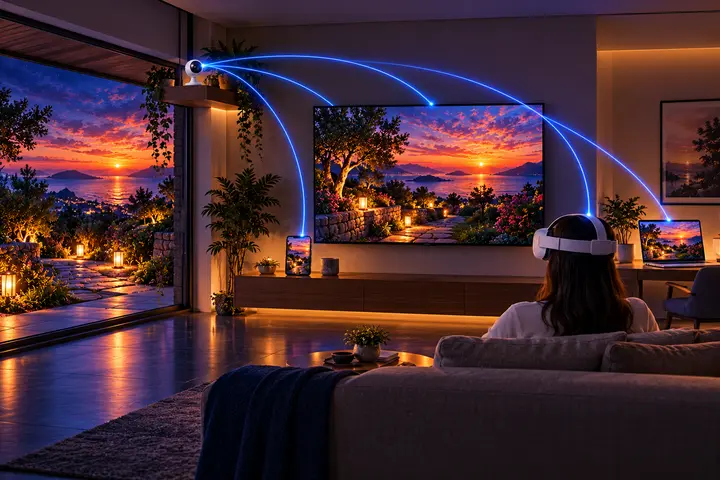
The phone plugged into the remote can send the drone's picture and values to Immuch360 in a Meta Quest or on an Android TV or Google TV on the same local network, for the people with you. A headset shows them in a window or, larger, in a flight view in front of you, and a TV full screen, with the same values and obstacle ring as the phone. They only watch: nothing a headset or a TV does reaches the remote or the drone. Their notes, such as "Watching only", fade after a few seconds and come back with a key, a tap or a button. Should the circle hide the middle of the picture in the headset, "Frame at the edges" in its menu keeps the middle clear. Flying while you watch the headset or the TV needs an observer next to you who keeps the drone in sight (EU open category); without one, watch the drone.
- On the phone, on the live screen, tap "Send to a headset or a TV" and turn it on.
- Meta Quest: open Immuch360, Library, Drone, and pick the phone; type the code the phone shows, once for that phone. The picture opens in the window; "Open the flight view" makes it larger, and B or Y brings the window back.
- Android TV and Google TV: open Immuch360, Library, Drone. Under "Let this TV watch", the TV shows a code and its QR code: on the phone, in the same panel, tap "Add a TV" and scan it, or type it. Then select the phone on the TV and press OK: the picture comes full screen; OK shows or hides the numbers, and Menu opens the options.
- The phone and the screen must be on the same local network. Away from home, turn on the phone's hotspot, in the 5 GHz band if it offers it, and join it from the headset or the TV.
- For a bug report, the headset's menu and the TV's Options have Diagnostics and "Save a reception record", which keeps what that screen received.
Bring a drone's or a camera card's photos and videos to Immich
Experimental
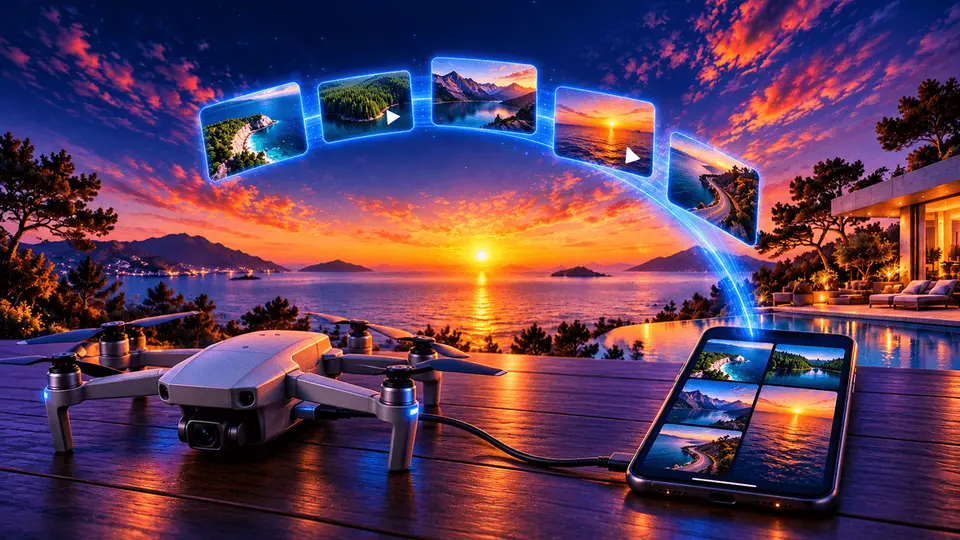
Import the photos and videos of a DJI drone over USB, straight to your Immich server: plug the drone or a card reader into an Android phone, pick the new files and send them, with the videos placed on the map from the drone's flight data and the drone's 360° spheres shown as 360°.
- Open the Drone card in the Library, then "Photos and videos from the drone". Its setting, "DJI drones (experimental)" in Settings, Advanced, is on by default; turn it off there to hide that page.
- Plug the drone (a Neo 2 can stay off) or a card reader into the phone with a USB-C data cable; a DJI remote without a screen (RC-N1, RC-N2, RC-N3) holds no photos. On the DJI drone page, tap "Choose the drone or the card", choose it in the side menu of the picker, open its DCIM folder or keep the whole drive, then "Use this folder" and Allow.
- The page lists the photos and videos by day, without the .LRF, .SRT, .THM and .m4a side files. Tap "Select all new", then "Upload to Immich"; the files sent before carry a cloud mark and are skipped. "Keep on the device" copies the files to the phone's gallery instead, in the album "Immuch360 import".
- For a video to land on the map, turn on Video Subtitles in DJI Fly (video mode, Settings, Camera) before you fly: the drone then writes a .SRT file next to each video, the app reads the place from it and sets it on your server after the upload, when Immich found none.
On which screens
| On which screens | Phone and tablet | Computer | Meta Quest | TV |
|---|---|---|---|---|
| The DJI drone's live videoExperimental | Yes | Yes | Yes | |
| Import from a DJI drone or a card over USBExperimental | Yes |

Get it on your screens.


GitHub
Windows · macOS · Linux · Android TV · LG · Samsung · APK
Build 42 on GitHub, November 6, 2026 · Desktop build 22, November 6, 2026